Your time, back in your hands.
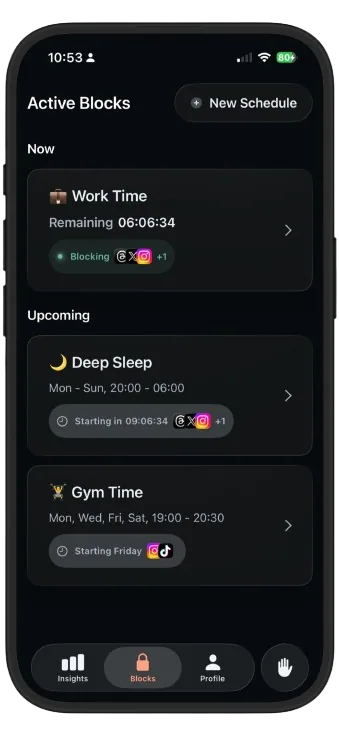
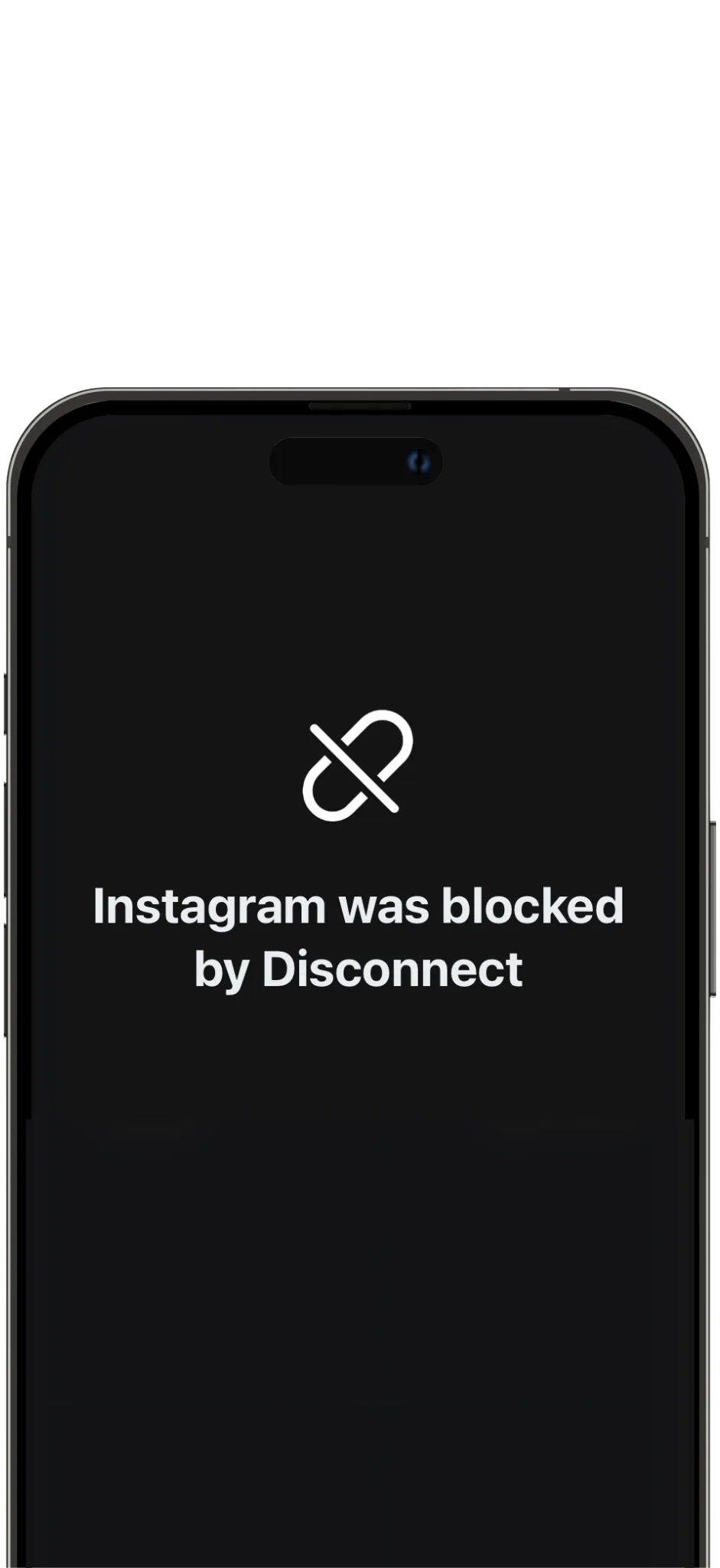
Disconnect keeps distracting apps out of reach, so your time goes to what actually matters. Set a block once, and your phone finally works for you instead of against you.

Features
Usage Limit
Give any app a daily limit. Every minute counts toward it. Hit the limit and it locks for the day. At midnight, it starts fresh.
Open Limit
Decide how often an app can open. Instagram now waits for you to choose. Use an open when it's worth it. 15 minutes, then it locks again.
Schedules
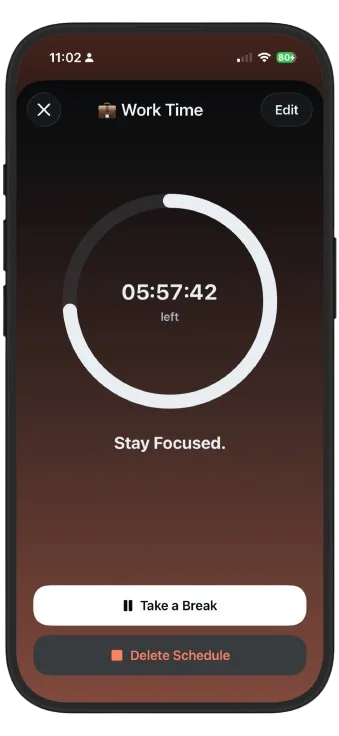
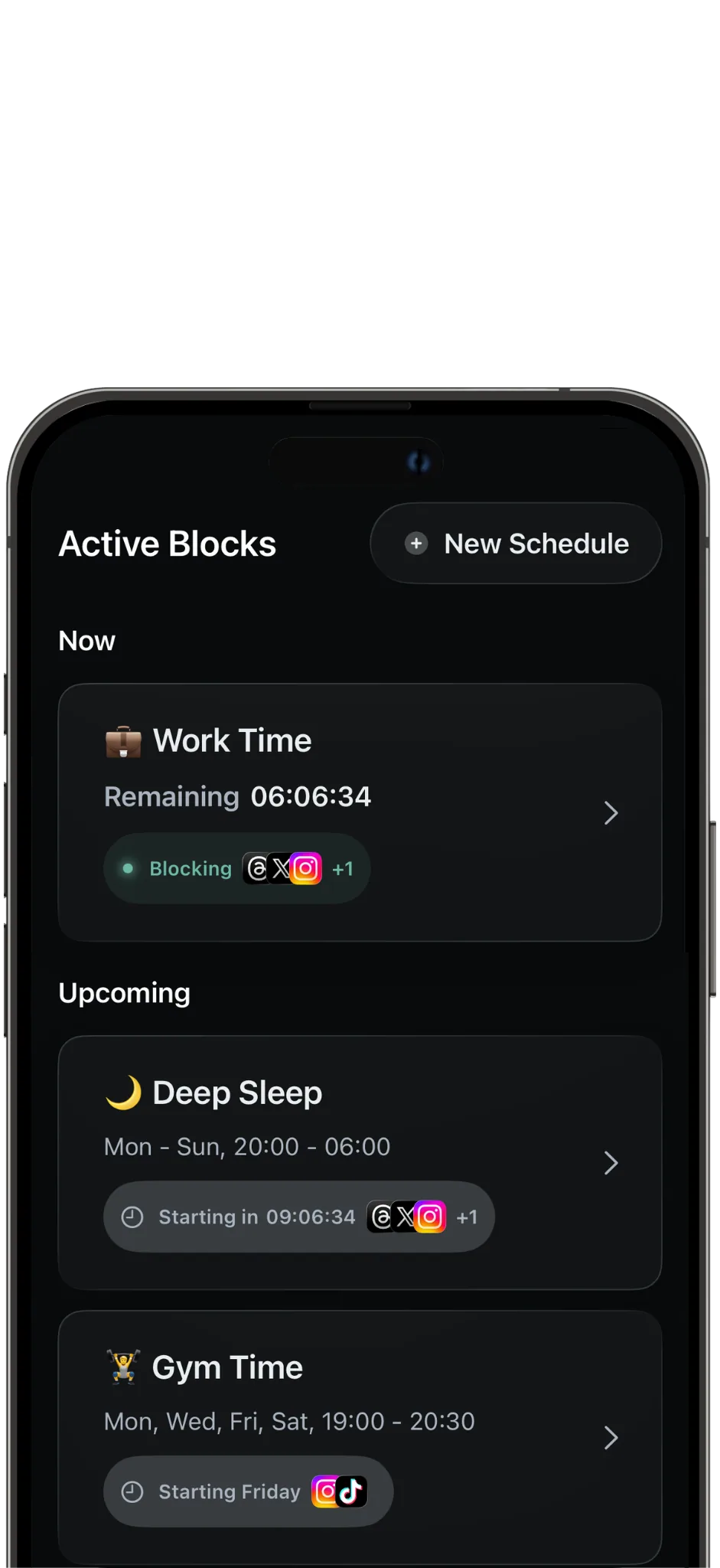
Plan your focus hours once. At 9:00, apps lock on their own. Instagram waits until 17:00. Then they're back. Same time tomorrow.
Quick Block
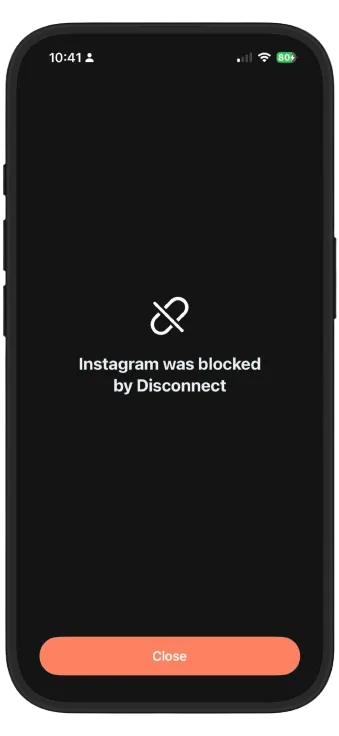
Start a block in seconds. Distracting apps lock instantly. Tempted? Instagram stays blocked. When time's up, they're back.
Practical guides to break the habits that keep you scrolling
From night-time scrollers to students cramming for exams, people love Disconnect.
My teenager and I used to argue every night about her phone. We set up a Deep Sleep schedule together, and now the app is the “bad guy” instead of me. She sleeps better, and honestly so do I. Thank you.
They can actually block apps
★★★★★My screentime was 10 hr and now because of disconnect it reduced to an hour
Turned on Work Time with only Slack and my calendar allowed. Shipped more in one week than in the whole month before. Should've done this years ago.
Efficient and affordable
★★★★★Free, easy and efficient: everything I needed to get my time back for work and my personal life. Thanks to the team that built this app, I hope you keep improving ❤️ I hate TikTok and Instagram
Nice app
★★★★★Really nice app to use. It genuinely makes me spend less time on my screen. I'd recommend it to everyone!
⭐⭐⭐⭐
★★★★★It has helped me a lot to reduce my screen time. I like it because it's strict, so you really can't get into the app.
The perfect app
★★★★★Easy to use app and it works great!
More productive
★★★★★A great app for improving your productivity and discipline.
Compliments
★★★★★I want only to say thank you
Very good ✅
★★★★★Very good app, and on top of that it's a free app
It works as it should
★★★★★No subscription needed
Questions, answered
How do I block distracting apps on iPhone?
Open Disconnect, pick the apps or categories you want to block, choose a duration, and tap Block. iOS enforces the block through Apple's Screen Time framework, so a blocked screen appears instead of the app until the timer runs out.
Learn more: How to block apps on iPhone →Can Disconnect block Instagram, TikTok and other social media apps?
Yes. You can block individual apps like Instagram, TikTok, X and YouTube, or block the entire social category in one go, for a single session or on a repeating schedule.
Learn more: How to block social media apps →How do I stop doomscrolling?
The most reliable fix is adding friction at the moment of habit: when you catch yourself scrolling, start a short block so the feed simply isn't there. Combined with a nightly schedule, most people see their scrolling drop within days.
Learn more: How to stop doomscrolling →How can I reduce my screen time without deleting my apps?
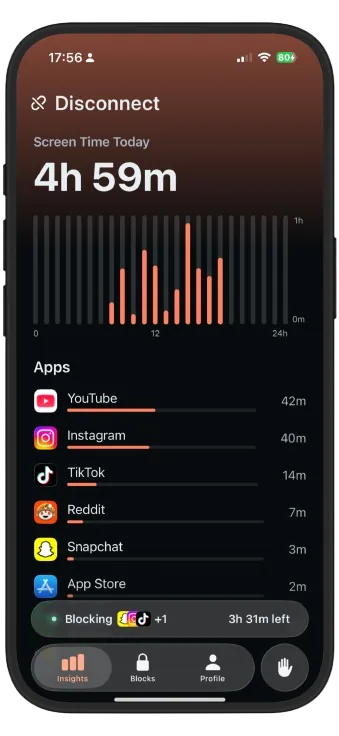
You don't need to delete anything. Track where your time actually goes with Insights, then block your top time-sinks during the hours they hurt most: deep work, meals, and the hour before bed.
Learn more: How to reduce screen time on iPhone →How do I stop using my phone at night?
Create a Deep Sleep schedule that blocks your scrolling apps every night, say 21:30 to 06:30. When the pull is automatic, the boundary has to be automatic too.
Learn more: How to stop using your phone at night →Can I block apps while studying or working?
Yes, that's one of the most popular ways to use Disconnect. Start a focus block for the length of your study session, or set a Work Time schedule so distractions are blocked during the same hours every day.
Learn more: Stay focused while studying →What is a digital detox and how do I start one?
A digital detox is a planned period with little or no non-essential phone use: a day, a weekend or longer. The trick is deciding the rules in advance and letting an app enforce them, so the detox doesn't depend on willpower.
Learn more: How to do a digital detox →How do I know if I'm addicted to my phone?
Common signs: reaching for your phone without deciding to, losing track of time in feeds, checking it during conversations, and scrolling in bed despite being tired. If that sounds familiar, awareness plus small enforced boundaries is the way back.
Learn more: Phone addiction, signs & fixes →Is Disconnect free to download?
Yes. Disconnect is free to download on the App Store for iPhone (iOS 17 or later). Full access is unlocked with a subscription: weekly, monthly or yearly, whichever fits how you want to use it.
Get it on the App Store →