Your options, at a glance
There are four ways to block an app on iPhone: Apple's built-in App Limits, Downtime, deleting the app, and a dedicated app blocker. They differ in one crucial dimension: how easy they are to bypass when your resolve dips.
Method 1: App Limits (Settings → Screen Time)
iOS lets you set a daily time limit per app or category: Settings → Screen Time → App Limits → Add Limit. When time runs out, the app greys out.
The catch: the limit screen ships with an Ignore Limit button offering "One more minute" and "Remind me in 15 minutes." Tapping it becomes a reflex within days. App Limits are a speed bump, not a boundary.
Method 2: Downtime
Downtime (Settings → Screen Time → Downtime) blocks everything except apps you allow, on a daily schedule. It's useful for a blanket quiet period, but it's all-or-nothing, one schedule for every day, and it inherits the same easy overrides.
Method 3: Delete the app
Radical and sometimes right. But for most people reinstalling takes under a minute, and you lose the app for the moments you legitimately need it. Deleting treats the app as the problem, when the problem is usually when and how much.
Method 4: A dedicated app blocker
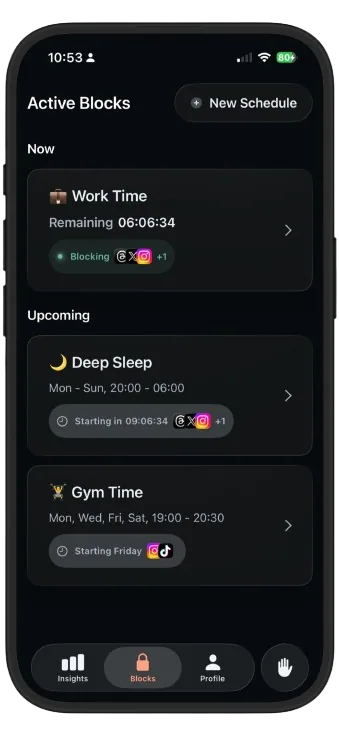
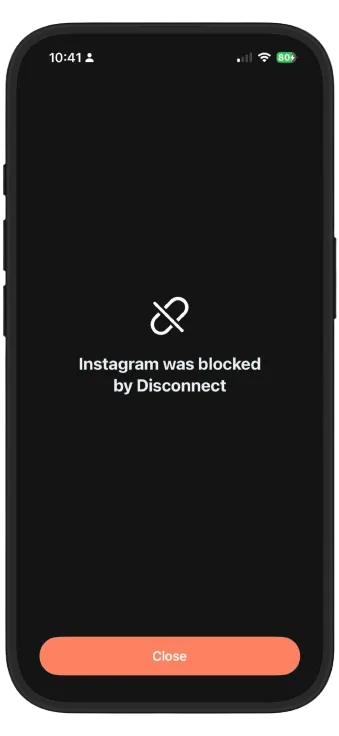
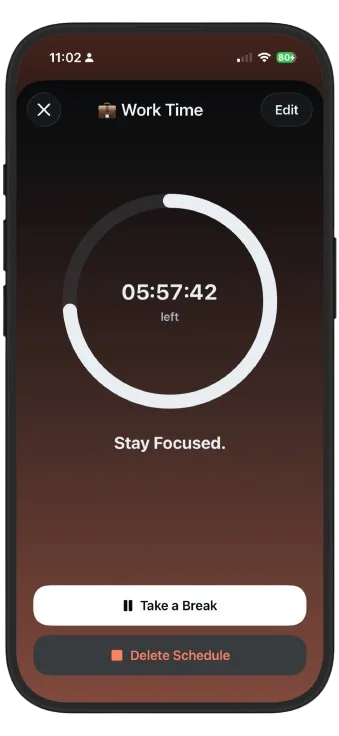
Apps like Disconnect are built on Apple's Screen Time framework, the same enforcement mechanism iOS itself uses, with the same system-level authority. The difference is the design around it: one-tap timed blocks, multiple named schedules instead of one Downtime, and a blocked screen with no "one more minute" button. You grant Screen Time permission once, and iOS itself enforces every block.
Which method fits which situation?
- Gentle daily cap on one app: App Limits are fine, if the Ignore button doesn't tempt you.
- Same quiet hours every single day: Downtime works, if all-or-nothing suits you.
- An app you never want again: delete it.
- Focus sessions, different routines for work, sleep and study, or blocks you can't talk your way out of: a dedicated blocker.
- Download Disconnect and grant Screen Time permission when asked (one time only).
- Tap Start Block, then select the apps or whole categories to block.
- Choose how long, from 15 minutes to a full day, and tap Block.
- Opening a blocked app now shows a block screen instead of the feed. For repeating needs, create a schedule like Work Time or Deep Sleep instead.
Make it stick
Whichever method you choose, two principles decide whether it works. Block by context, not guilt: "social apps during work hours" beats "less Instagram, somehow." And automate the decision: a block you have to re-choose every day will eventually lose to a bad day. Set the schedule once and let iOS hold the line.